
Start with a project
Create a folder, add an existing website, or make an editable copy from the Example Gallery. Your projects stay together in the sidebar.
Organize projects, edit HTML, CSS, and JavaScript, and preview your work in one Mac workspace. Export a personal app for local use and testing.
macOS 12 or newer. Launch updates open your email app.
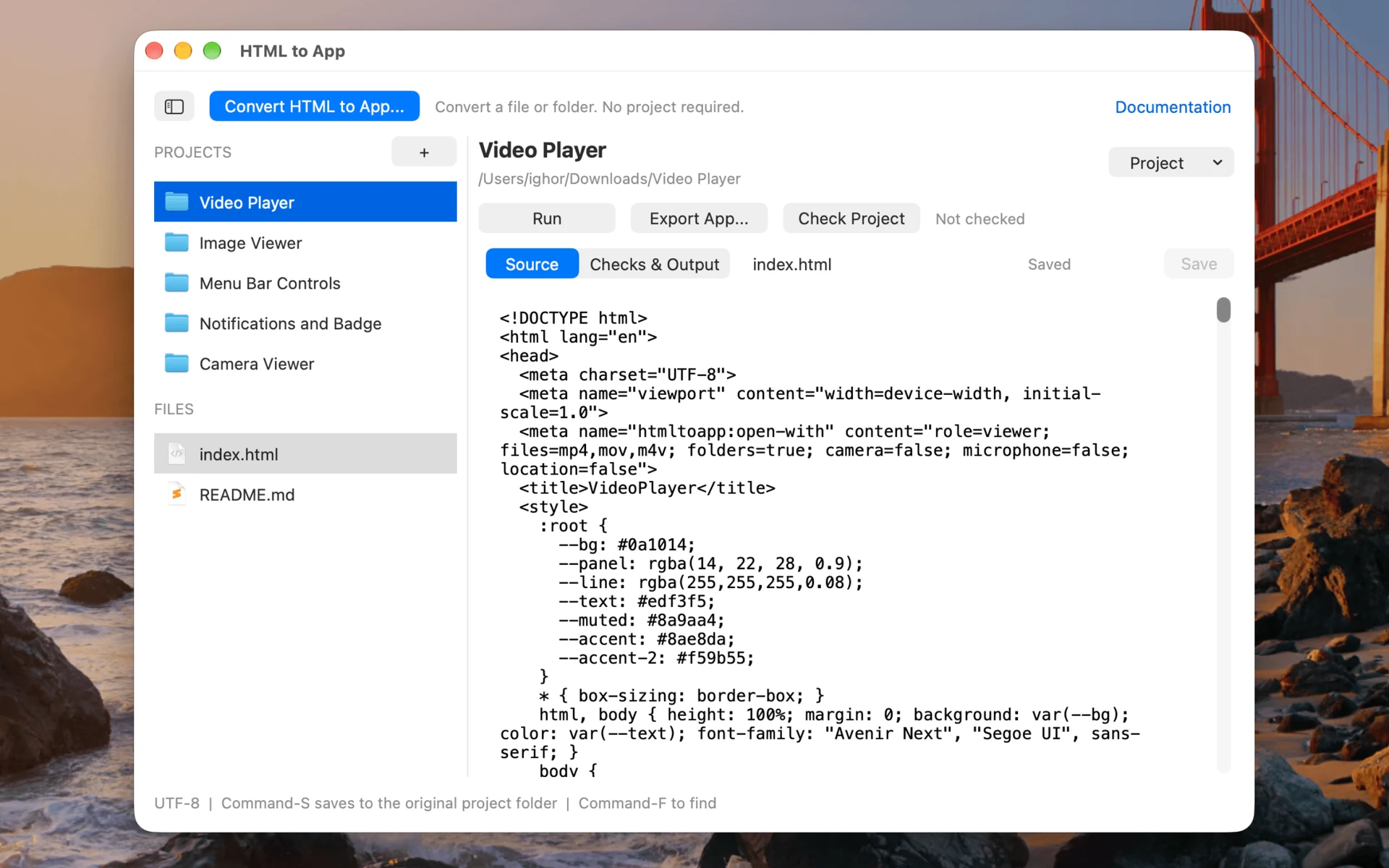
Your projects and source files, in one workspace
A real app screenshot. Select it to view full size.
Start with something new or pick up where you left off. Your source files stay in your own folders.
Create a folder, add an existing website, or make an editable copy from the Example Gallery. Your projects stay together in the sidebar.
Work on HTML, CSS, and JavaScript in the source editor. Save to the original folder, run a preview, and check for missing local resources.
Choose a name, icon, and content mode. Export an app for personal use and local testing, then return to your project whenever you want to change it.
Already have your HTML? Convert a file or folder directly with Convert HTML to App, without adding a project. Read the project guide.
Explore the project workspace, Example Gallery, and export settings in these current screenshots. Select an image to see how each part works.
Workspace
Keep multiple project folders in the sidebar and edit their HTML, CSS, JavaScript, and other text files. Save writes to the original folder. Run, Export App, and Check Project are available above the editor.
Open the large image to view it at full size.
Add native features through the built-in JavaScript bridge. Keep your interface in HTML, CSS, and JavaScript.
Files and folders
Register a viewer or editor for files and folders. Editor-role apps can save changes within the specific item you opened, without broad write access to your disk.
Explore Finder integrationNotifications
Show local macOS notifications and update the Dock badge from JavaScript. Notification permission is required for notifications and badge controls.
Read about notificationsMenu bar and Dock
Create a menu bar icon with dynamic menus, control your app window, and choose an app icon, Dock label, or optional Dock effects.
Explore menu bar controlsHTML to App is a workspace for local HTML projects. It is not a service for publishing or distributing apps.
Start with an editable example such as Geometry Pad, Text Editor, or a media player. Projects can be edited and exported offline. Your HTML may still request remote resources.
Export copies the bundled, precompiled launcher and configures its resources and settings. It does not compile new native code.
Compatibility and first launch The builder requires macOS 12 or newer, including its export process. The current exported launcher separately targets macOS 12 or newer. Test your HTML and chosen features on your Mac. Read the first-launch guidance.
HTML to App has not been approved yet, and the store listing is not live. Here is what to expect before launch.
Launch updates
Email to request a launch update. The button opens your email app so you can send the request.
Planned pricing
A one-time purchase is planned, with no subscription or in-app purchases. Final pricing, update policy, and trial availability will be announced before release.
Independent software
From the developer behind Parall and DockLock Pro. Get direct help with your project or ask a question before launch.