
A tool for your own files
"Let me drop a CSV file, preview the rows with duplicate emails and save a cleaned copy. Leave the original untouched." Ask for sample rows so you can try it without uploading a real customer list.
What would it take to make every app on your Mac swim around like a fish? Watch one idea go from a browser chat to the Dock. Then try the same process at your own pace with a word counter that keeps your drafts private.
The recording opens with the finished aquarium. Then watch how a prompt in a free Claude chat becomes a file you can open on your Mac. The wait for Claude to generate the file is shortened.
Open the project in HTML to App. Enable List Installed Apps to see your apps as fish and Open Installed Apps to launch one when you click it.
.htmltoapp file. The author opens it in HTML to App, reviews the app permissions and exports Aquarium Launchpad to Applications.Make a beautiful aquarium Launchpad for my Mac using HTML to App. Show it as a large, centered, borderless popup, like a splash screen. Turn my installed apps into swimming fish with their original icons. Show at most 12 fish per page with pagination. Add search across all apps and let me click a fish to open its app. Make the UI adapt to any size. Animate the app's Dock icon with a swimming fish too. Follow htmltoapp.app/documentation/agents.md and give me a ready-to-import .htmltoapp file.
A free Claude chat in a browser works. You don't need Claude Code, a local AI agent, Xcode or Terminal. Other chats that can write HTML work too. Claude explains how file downloads work.
Message 1
Start a new chat and send this before describing your idea. If the chat cannot read links, open the plain-text guide yourself and paste or attach it.
Read the same plain-text guideRead the HTML to App project guide at this address. https://htmltoapp.app/documentation/agents.md If you cannot open the guide, ask me to paste it. I will describe my app next. Use HTML, CSS and JavaScript, keep the assets local and use only the documented Mac features. Give me a complete, editable .htmltoapp file, not an executable or Terminal commands.
Message 2
Say what you want to do, what you want to see and what should stay private. Replace the word counter with your own idea when you are ready.
Download the working word counter or try your own file on your Mac.
Make a word counter for my drafts. Give me a labeled area to paste text and a count that changes as I type. Do not save or send my drafts. Make it work offline, with no special permissions. Return the complete Word-Count.htmltoapp file.
Message 3
Try the first file on your Mac. In the same chat, describe one change and what must stay the same. If you start a new chat, attach the previous source package and give it the guide again.
Add a word-count target and show how close I am to it. Remember only the target when I reopen the app. Keep counting as I type and keep my draft private. Give me the complete updated Word-Count.htmltoapp file, not just the changed lines, and tell me how to check the change.
No download button in your chat? Ask for one complete, self-contained HTML file with its styles and scripts inline. Copy just the file contents, without the surrounding code fences. In TextEdit, choose Format > Make Plain Text and save it as index.html, not index.html.txt. For a project with separate files, ask for a ZIP with index.html at the top level alongside its assets. One enclosing folder also works. Rename that ZIP from .zip to .htmltoapp. No command line is needed.
If you started on your phone, send the file to your Mac with AirDrop. Keep the source package somewhere you can find it again. It is the file you can edit or give back to the chat.
.htmltoapp file in Finder. This opens the converter, not the project itself. For a plain .html file, use Convert HTML to App in the main window.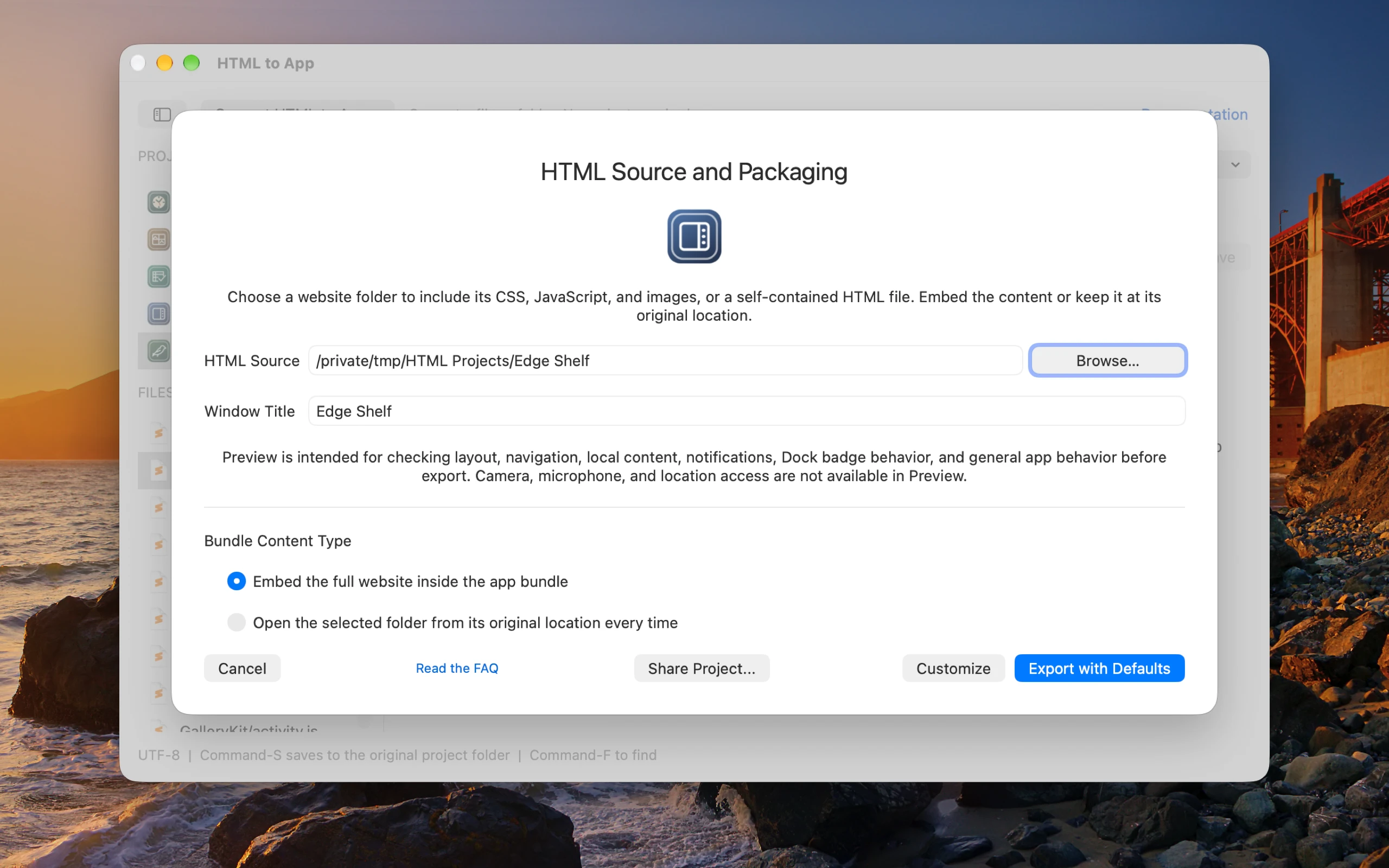
Updating a tool that already holds data? The source package is not a backup of its saved records. Back them up first if the tool offers that option. Keep using the same source location and export destination. Choose Keep Existing Data when HTML to App recognizes the replacement. Otherwise, save the new app separately and keep the original. Compare the saved data options.
Start with an input, an action and a result you can check. The JavaScript bridge reference lists the Mac features a web project can actually use.
"Let me drop a CSV file, preview the rows with duplicate emails and save a cleaned copy. Leave the original untouched." Ask for sample rows so you can try it without uploading a real customer list.
"Give me a 25-minute focus timer. Show time left in the menu bar and let me pause it or reopen its window from the menu." To try Dock artwork instead, ask for a visible Dock icon that counts down in the exported app.
"Make a small clock I can drag around. Let me keep it on top and give me a way to return it to a normal window." The built-in Example Gallery includes a working Desk Clock you can inspect.
Where this stops. A project can use WebKit and the documented bridge. It cannot run shell commands or a Python, PHP or Node.js backend. Online services need a connection. Keep private API keys on a separate server, never in the project. Features such as camera, microphone or location need permission and cannot be tested in the Mac App Store edition's Preview. Try those in your exported app.
The chat supplies readable HTML, CSS and JavaScript, not an executable. You don't grant it a shell, install a toolchain or run a build script it wrote. You can inspect the files before letting any project code run.
Preview runs the page in WebKit inside the sandboxed HTML to App builder. Export copies a fixed, precompiled launcher bundled with the builder. In embedded mode, your web files are copied into its Resources folder, not into the binary.
The exported launcher must also run in Apple's App Sandbox. The project cannot turn it off, supply a different launcher or use the bridge to run an unsandboxed helper of its own. With a general-purpose native project, you would have to inspect its helpers, build scripts and sandbox settings yourself.
HTML to App does not upload the project to package it. Your chat provider does receive whatever you send to the chat. Use sample data there and try the real files locally.
Sandboxed does not mean offline. An export can make network requests, has read-only access to Downloads, and can use files or device access you authorize. If a tool should stay offline, ask the chat not to use network requests or remote assets. Inspect the source and review its permissions.
First-launch approval is separate from what the project is allowed to do after it opens. Neither approval option grants device permissions, turns off Gatekeeper or notarizes the app.
You do not have to install anything extra. If macOS blocks your own trusted export, try opening it once, then use Open Anyway in System Settings > Privacy & Security if offered. On macOS Monterey, look in System Preferences > Security & Privacy > General. If macOS reports damage or malware, stop and investigate.
For repeat exports, an optional open-source approval script is already bundled with HTML to App. Choose View Script to read it before choosing Install Script. Once installed, it runs outside the sandbox to remove quarantine from matching local exports. It is not code supplied by the chat.
A bundled service performs that approval step automatically. It runs outside App Sandbox as the current user, without administrator privileges. There is no script to install. The builder, the exported launcher and the web project they run remain sandboxed.
Read about first launch in both editionsWant to give someone your finished word counter? Send the editable .htmltoapp file. They can inspect the same source and export their own sandboxed copy. Your .app is ad hoc signed for local use, not notarized for distribution. See how to share a project.